
The identifier 000742 and the number 742 are not interchangeable when the first value is a product code, account reference, or fixed-width label. A CSV can contain the correct six characters while Excel displays a converted number. If that converted value is saved back to a file, the original identifier may be lost from the new export.
The practical solution is to control column types before importing, preserve an untouched source, and verify the exported text rather than trusting how the worksheet looks. This guide explains that workflow with small examples, a decision table, and a reproducible comparison script. A CSV validator can help you inspect the serialized values, but it cannot force Excel or another destination to keep a column as text.
First decide whether the value is an identifier or a quantity
An identifier distinguishes one thing from another. A quantity measures something. Leading zeros in a warehouse code can be significant, while leading zeros in a count of items may not be. Ask what operations make sense for the column. Adding two customer identifiers is meaningless; adding two quantities is normal.
Write this distinction in the import contract. Do not let every application guess it independently. Product codes, postal codes, tracking references, telephone numbers, and long account labels often need text handling. A column's appearance is not enough to determine its meaning: a label consisting entirely of digits can still be text.
For a team handoff, specify the expected width only when a real rule exists. “Six-character product code, leading zeros significant” is useful. “Add zeros until everything looks the same length” may corrupt a mixed-length identifier system. Keep authoritative examples and validation rules with the template so an operator does not have to infer the rule from a few rows.
A CSV does not carry spreadsheet cell formatting
The raw text below contains two six-character identifiers:
customer_id,postal_code,quantity
000742,02108,12
000743,00501,3
A receiving application decides how to interpret each field. Quoting "000742" identifies a CSV field boundary; it is not a universal instruction that every spreadsheet must treat the content as a text cell. The import workflow and its type settings determine what happens next.
| Situation | What the file contains | What must be controlled |
|---|---|---|
Source text is 000742 |
The zeros still exist | Import the identifier column as text |
Worksheet shows 000742 through a number format |
The underlying value may still be numeric | Verify export behavior in the resulting text file |
Exported text is already 742 |
Original width is absent from that output | Recover from source or an authoritative width rule |
| Identifier has more than 15 significant digits | It must remain an exact character sequence | Prevent numeric conversion before loading |
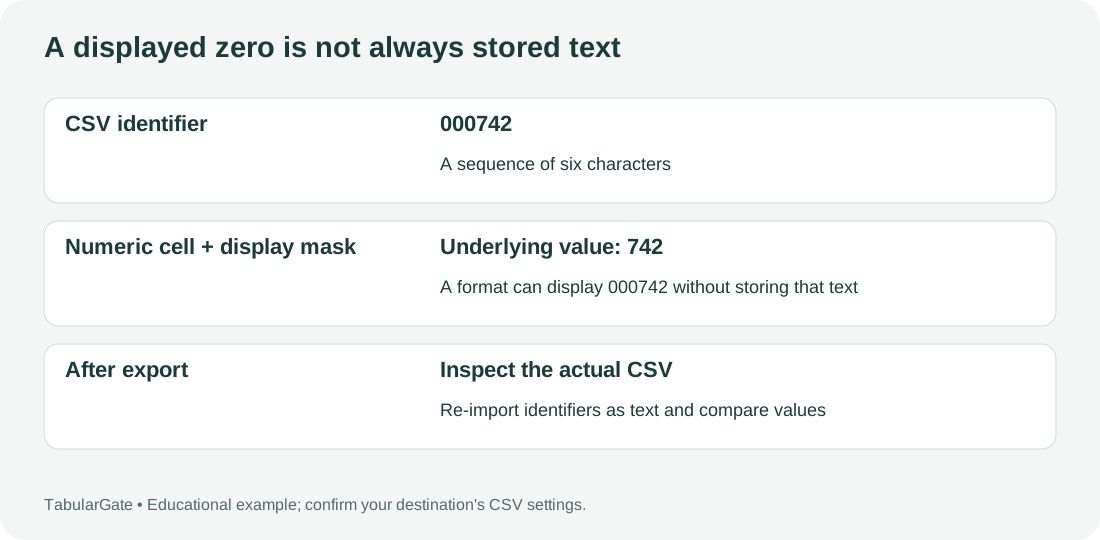
The diagram is a conceptual comparison. It does not measure how frequently Excel changes data, and it does not imply that every version uses the same default import settings.
Preserve the original before opening the file
Save the received CSV under a source filename and create a working copy. If you have already opened the file but have not saved it, compare the original text before assuming that the file itself changed. A spreadsheet's current view and the file on disk are separate states.
Use a plain-text editor to inspect a known identifier in the preserved source. Search for the complete record, including a second field that helps identify it. If the original still contains 000742, you can restart the import with explicit type handling. If the source contains 742, changing Excel's import settings cannot reconstruct unknown missing characters.
Record where the file came from, who exported it, and whether it was previously opened and resaved. An upstream spreadsheet may already have changed the values before the file reached you. Asking for the direct system export can save considerable time compared with repairing a file after several undocumented conversions.
Import through the data workflow instead of relying on double-click
On supported desktop Excel installations, use the Data import workflow for a text or CSV file. Inspect the preview, confirm the delimiter and character interpretation, and choose the transformation or type controls available in your version. Microsoft documents this route, although exact menu labels and supported features vary across Windows, Mac, and release versions.
When the workflow opens Power Query, identify the columns that must remain text before loading them into the worksheet. If an automatic type-conversion step has already been applied, inspect that step. In a reproducible query, remove or edit the unwanted conversion and assign the identifier column its intended text type at the appropriate stage. Recheck the preview against the untouched source.
Do not simply convert a column to text after its zeros have disappeared and assume that the original strings are back. The text 742 is still missing the same information. The important action is preventing the unwanted conversion while the original character sequence is still available.
A worked import test with expected values
Create a small synthetic test file containing cases that would reveal unwanted type inference:
case_id,external_id,note
T1,000742,leading zeros
T2,12345678901234567890,long identifier
T3,1E10,looks like scientific notation
T4,03-04,looks like a date
T5,A0007,letters and digits
The expected output is the same character sequence in every external_id field. Import this file using your chosen workflow and assign that column as text. Compare the five results with the source, then export a separate CSV and compare again. Keep the test file with the import instructions for the next operator.
Microsoft notes Excel's 15-digit numeric precision limit. A long identifier must therefore avoid numeric conversion from the beginning. Restoring a display format after digits have been rounded does not recover the original sequence. Treat the long-number test as an exact string comparison, not as a numeric tolerance check.
The scientific-notation and date-like examples serve a similar purpose. An apparently reasonable worksheet display can conceal a changed value. Your test should establish preservation of meaning, not merely that the import completed without an error dialog.
Custom number formats are useful, but they solve a different problem
A custom format such as 000000 can make a numeric value appear six digits wide. This can be appropriate for a presentation worksheet when the underlying value is genuinely numeric and the desired display width is known. It is not equivalent to preserving an arbitrary identifier as text across applications.
CSV export behavior depends on the application and export path. Some workflows serialize a displayed representation; others use an underlying value or another transformation. Verify the actual file you intend to send rather than assuming that a visible zero in the worksheet will survive every export.
If the destination requires exact identifiers, use a text-preserving import and export process. Keep display-oriented formatting separate from the data contract. A useful acceptance note says “the exported field equals 000742,” not just “the cell looked correct on my screen.”
Repair lost zeros only with an authoritative rule
If you know that every identifier is exactly six numeric characters and the original source confirms that 742 means 000742, a controlled reconstruction may be possible. But obtain that rule from the system owner, not from the longest value you happened to see in the sample. Some systems mix lengths, contain letters, or assign codes where zero has a specific positional meaning.
In a workbook, a formula such as =TEXT(A2,"000000") can produce a text representation from an appropriate numeric value. It does not recover digits already rounded in a long identifier, and it should not be applied indiscriminately to an entire mixed-type column. Keep the original column, write the reconstructed result to a separate column, and review the exceptions before exporting.
Do not use an account reference or tracking number as a numeric value merely because a formula accepts it. Confirm that no significant digits were already lost. If the underlying source is unavailable and the intended width is uncertain, quarantine those records rather than making a guess look authoritative.
Why adding quotes or an apostrophe is not a portable fix
CSV quoting is about field boundaries and escaping. It allows a value to contain a delimiter, quotation mark, or line break. The CSV quotes guide shows those rules. Adding quotes to every numeric-looking field does not establish a universal text type for every receiving program.
Likewise, a leading apostrophe used while entering a value in a spreadsheet is an application convention. Writing an apostrophe into a CSV can make it part of the value received by another system. That may turn an intended identifier into a different identifier. Test the exact downstream workflow rather than treating a spreadsheet entry shortcut as an interchange specification.
Avoid formula-style constructions such as ="000742" as a general CSV transport solution. They can be interpreted as formulas by some readers and as literal strings by others. They also mix executable spreadsheet syntax with data. Prefer a documented import type and a plain character sequence that the receiving system can preserve.
Export a new file and inspect the text
Once the worksheet or query is correct, export to a new filename. Do not overwrite the preserved source. Open the resulting CSV in a text editor and inspect the known test identifiers. If you double-click the exported file back into Excel, automatic interpretation may happen again, which can confuse a correct export with an incorrect display.
Check the encoding and delimiter as well as the identifiers. A workflow that preserves zeros but changes a non-ASCII name or serializes all fields into one column still fails the handoff. Use the CSV encoding guide when names or punctuation display incorrectly.
Run the exported file through a CSV validator and compare its parsed preview with the expected strings. TabularGate treats field values as text during its structural checks; it does not undo a previous spreadsheet conversion or configure the destination's import types. The final acceptance test belongs to the actual receiving workflow.
Compare identifiers with a small local script
For a repeatable check, compare source and exported identifiers by a stable record key. This example intentionally rejects duplicate keys rather than silently keeping one. It assumes both files use the same header contract and an appropriate UTF-8 interpretation; adapt those assumptions deliberately.
import csv

def identifiers(path):
    result = {}
    with open(path, newline="", encoding="utf-8-sig") as source:
        for row in csv.DictReader(source):
            key = row["case_id"]
            if key in result:
                raise ValueError(f"Duplicate case_id in {path}: {key}")
            result[key] = row["external_id"]
    return result

before = identifiers("source.csv")
after = identifiers("exported.csv")
for key in sorted(before.keys() | after.keys()):
    if before.get(key) != after.get(key):
        print(key, repr(before.get(key)), repr(after.get(key)))
A missing record and an altered value both deserve investigation. Do not coerce the compared strings to integers, strip leading zeros, or apply a numeric tolerance, because those operations erase exactly the differences the check is designed to find. For confidential files, run the comparison in an approved local environment.
Make the workflow reproducible for another person
Document the Excel version and platform, the import route, the columns assigned as text, any query steps you changed, and the export option you used. Include the synthetic fixture and expected output. A screenshot of one correct-looking cell is not enough for another operator to reproduce the entire process.
For a recurring import, compare the complete set of identifiers after each export, not just a handful of rows. Also reconcile record counts, duplicates, and destination outcomes. If the supplier changes the export layout, stop and review the mapping before reusing an old query that may depend on column positions.
Keep the original source, working workbook, final CSV, and validation report under different names. Your CSV validator report is a structural checkpoint in that record, not a substitute for proving that the destination preserved identifier strings. Continue with the CSV validation checklist when you are ready to accept the whole import.
Frequently asked questions
Are the zeros gone if Excel does not display them?
Not necessarily from the original file. Inspect the raw source before saving anything. If it still contains the complete string, restart the import with explicit text handling. If a newly exported file contains the shortened value, recover from the preserved source rather than trying to infer unknown characters.
Can I format a damaged long number back to normal?
A display format cannot recover significant digits already rounded during numeric conversion. Obtain the exact identifier from the original source. Prevent the issue by loading the identifier as text and checking the exported string before sending it downstream.
Does changing a column to Text after import fix everything?
It can prevent some later conversions, but it does not recreate missing zeros or rounded digits. Apply text handling while the original values are still available, review automatic conversion steps, and verify the resulting export against the preserved source.
Primary references and scope
See Microsoft's leading zeros and large numbers guidance, text and CSV import/export instructions, and Power Query import documentation. The examples are synthetic and the workflow should be tested in your installed version. Excel is a Microsoft product; this independent guide is not affiliated with Microsoft.